
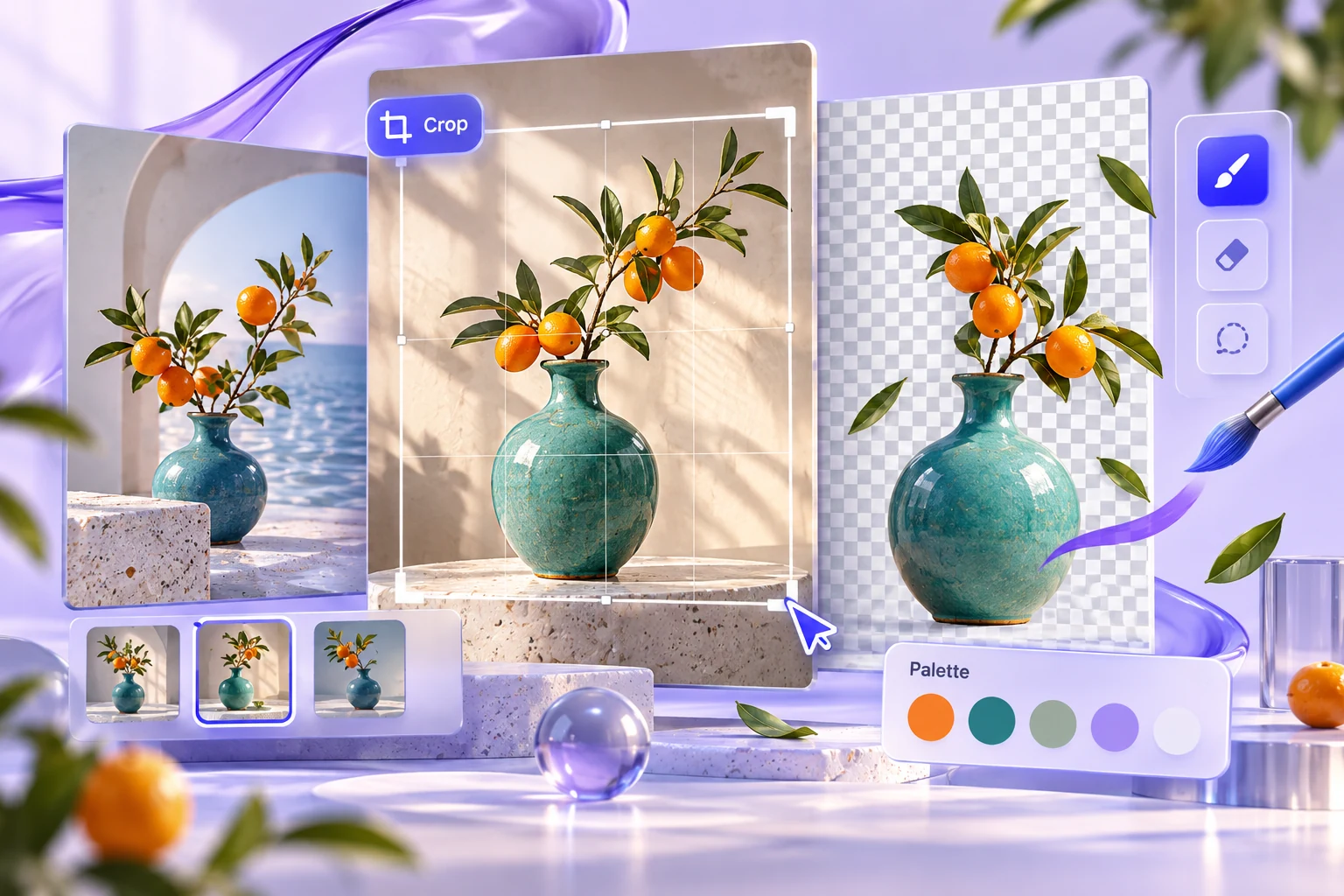
An image prompt often begins with a style: cinematic, minimal, colourful or futuristic. Style matters, but it does not explain why the picture belongs on the page. Start with the job of the image. A featured illustration should help someone recognise the subject and decide whether the article is relevant before they read the headline.
Choose the main visual idea Suppose you are illustrating a guide to reviewing audio transcripts. A glowing abstract sphere may look digital, but it tells the reader little about the task. A waveform beside a speaker-labelled transcript gives the image a more specific purpose. The subject is the relationship between recording and text, not AI in general.
Write that relationship in one sentence. Then identify the single object or arrangement that should dominate at thumbnail size. Too many equally important objects can turn a useful illustration into a collection of decorative icons.
Plan the crop before generating Decide where the image will appear: a wide article card, a square product tile or a hero with text beside it. Specify the aspect ratio and the area that must remain visible. If the design needs text space, describe its location rather than hoping to crop a busy image later.
Test the idea at the smallest likely size. A beautifully detailed interface may become unreadable in a three-column grid. Large shapes, a recognisable subject and a limited number of accents usually survive better than tiny panels packed with invented text.
Describe what must stay truthful For a conceptual article image, avoid making the artwork look like evidence of a real product feature. An imagined dashboard should not be labelled with a vendor’s name or presented as a screenshot. If the article is reviewing a specific application, identify illustrative artwork as such and use verified product material where actual interface evidence is needed.
The same principle applies to physical products. Do not let an attractive generated object imply a feature, accessory or design detail that the real item does not have. Visual appeal should help explain the article, not create a false expectation.
Review function before decoration Compare candidates using a few questions. Can you recognise the subject immediately? Does the focal point survive the crop? Is there unwanted lettering, an impossible object or a detail that changes the meaning? Does the image compete with the headline rather than support it?
Only after those checks should you compare lighting, texture and colour. A slightly simpler image that communicates the task is often a better featured image than a more elaborate scene that could accompany any technology article.
Keep the finished asset usable Save the selected image with a descriptive filename, its source and any relevant usage information. Write alternative text from the finished visual, not from the original prompt. Describe the meaningful objects or relationship without pretending that decorative details carry information they do not.
Finally, inspect the image in the actual page layout on desktop and mobile. The surrounding typography and crop can change what the picture communicates. A good image brief gives the generation a direction, but the final acceptance decision belongs to the published context where readers will encounter it.
Keep the inputs and review notes together in the task brief builder workspace, then save a backup you can reopen.